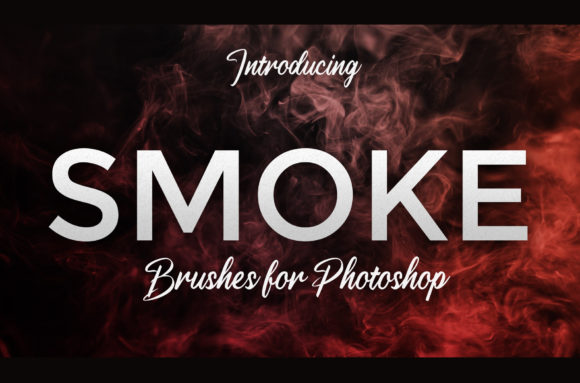
26 Smoke Brushes for Photoshop: Elevating Your Digital Art with Photorealism
Creating atmospheric depth in digital photography and graphic design often hinges on the subtle details that viewers might not consciously notice but definitely feel. Among these elements, smoke is notoriously difficult to replicate authentically. It is fluid, translucent, and constantly changing shape. Many designers struggle with this, resorting to generic, low-resolution assets that look flat or obviously artificial against high-definition backgrounds. This is where a specialized toolset becomes invaluable. The 26 Smoke Brushes for Photoshop collection offers a solution rooted in reality, providing artists with the means to integrate genuine atmospheric effects into their work without the steep learning curve of manual painting.
The Trap of Generic Digital Assets
A common mistake among both beginners and seasoned professionals is relying on standard, algorithm-generated brushes for organic elements. While convenient, these often lack the chaotic randomness of real-world physics. When you use a brush that repeats a predictable pattern, the human eye detects the repetition, breaking the immersion of the image. This issue is particularly prevalent in marketing materials and photo manipulations where realism is paramount. If your goal is to create a moody, cinematic scene or a product shot that feels tangible, synthetic-looking smoke can undermine the entire composition.
Furthermore, many free resources available online suffer from poor resolution. When scaled up for large-format prints or high-resolution web displays, pixelation becomes evident. This forces designers to spend excessive time cleaning up edges or masking artifacts, reducing workflow efficiency. By choosing a set derived from actual photography, such as the 26 Smoke Brushes for Photoshop, you bypass these quality control issues. These brushes are created from real photos of smoke, ensuring that every swirl and wisp carries the natural irregularity and texture of genuine vapor.
Understanding the Composition of the Set
To maximize the utility of this tool, it is essential to understand what is included and how each component serves a different purpose. The collection is not just a random assortment of shapes; it is a curated toolkit designed for versatility. It includes:
- 22 Single Smoke Brushes: These are ideal for controlled applications where you need to place specific plumes or wisps. They allow for precise positioning, making them perfect for adding subtle hints of atmosphere around subjects or objects.
- 4 Scatter Smoke Brushes: These are designed to add volume and density quickly. Scatter brushes distribute multiple instances of the brush tip across a stroke, creating a more dispersed, natural cloud effect that mimics how smoke dissipates in open air.
- PDF Installation Manual: A quick-start guide that simplifies the technical setup, ensuring you can start creating immediately without troubleshooting compatibility issues.
Overlooking the distinction between single and scatter brushes is a frequent oversight. Beginners often try to build complex clouds using only single stamps, which results in a disjointed and unnatural appearance. Conversely, using scatter brushes for fine details can lead to a messy, uncontrolled look. Understanding when to deploy each type is key to achieving professional results.
Compatibility and Technical Considerations
Before downloading any digital asset, verifying compatibility is a critical step that is often skipped. One of the strengths of the 26 Smoke Brushes for Photoshop is its broad compatibility. It works seamlessly with Photoshop Elements, as well as Photoshop CS1 through CS6 and the modern Creative Cloud (CC) versions. This ensures that whether you are a hobbyist using older software or a professional agency working with the latest updates, the tools will function as intended.
However, a common misunderstanding involves brush settings. Even the highest quality brushes will look artificial if the opacity, flow, and blending modes are not adjusted correctly. Many users apply smoke at 100% opacity, which makes it look like solid gray paint rather than translucent vapor. To avoid this, always lower the opacity and experiment with blending modes like Screen or Lighten. This allows the background to show through the smoke, maintaining the illusion of transparency and depth.
Installation and Workflow Efficiency
For those new to customizing Photoshop, the installation process can seem daunting. Incorrect installation can lead to brushes not appearing in the preset manager, causing frustration and wasted time. The included PDF installation manual addresses this by providing clear, illustrated steps. Following this guide ensures that the brushes are loaded correctly and organized within your library.
Another practical tip is to organize your workspace before applying these effects. Create separate layers for your smoke elements. This non-destructive approach allows you to adjust the position, scale, and opacity of the smoke independently from the rest of your image. If you paint directly onto the background layer, you lose the flexibility to correct mistakes or refine the effect later. Layer masks are also essential; use them to fade the edges of the smoke, helping it blend naturally into the environment rather than sitting abruptly on top of it.
Enhancing Realism Through Variation
Real smoke is never uniform. It varies in density, color, and direction based on wind, heat sources, and surrounding obstacles. A static application of a single brush tip will rarely capture this complexity. To achieve true photorealism, you must vary your approach. Rotate the brush tip randomly, change the size dynamically, and layer multiple brushes on top of each other. The 26 Smoke Brushes for Photoshop set provides different patterns to facilitate this variation. By combining the scattered brushes for base volume and the single brushes for detailed tendrils, you can construct a multi-layered effect that mimics the chaotic nature of real smoke.
Additionally, consider the color context. Smoke is rarely pure black or white. It reflects the ambient light of the scene. Tinting your smoke layers with subtle hues from the environment—such as the orange glow of a fire or the blue tint of moonlight—adds significant credibility to the composite. Ignoring color grading is a missed opportunity to integrate the effect seamlessly into the narrative of the image.
Making the Right Choice for Your Projects
When evaluating digital assets, consider the long-term value they bring to your workflow. High-quality, versatile tools like these 26 Smoke Brushes for Photoshop are often described as a basic must-have for designers and photographers because they save time while elevating output quality. Instead of spending hours photographing smoke yourself or searching for unreliable free clips, you have a reliable, high-resolution resource at your fingertips.
Before finalizing your decision, ask yourself if the resource offers enough variety for your typical projects. Does it include both broad and detailed options? Is the resolution sufficient for your largest intended output? Does it come with support or documentation? This set checks all these boxes, offering a comprehensive solution that caters to a wide range of creative needs, from social media graphics to large-scale print advertisements.
If you have specific questions about usage or compatibility, reaching out to the creator is encouraged. Good support is a hallmark of quality digital products. By investing in tools that prioritize realism and ease of use, you empower yourself to focus on creativity rather than technical limitations. Enjoy the process of transforming your images with these authentic, high-resolution effects.